Role-Based Access Control
superglue RBAC controls which organization resources each user can access and what they can do with them. The same access rules apply across the dashboard, agent, API, SDKs, schedules, and MCP servers.
superglue RBAC fundamentals
Section titled “superglue RBAC fundamentals”superglue uses an allowlist model based on resource grants. A user can access a resource when at least one grant gives them the required permission.
Grants can cover a specific resource or all current and future resources of one type.
The resources governed by RBAC are:
| Resource | What access controls |
|---|---|
| Tools | Who can find, run, change, and share saved tools |
| Connections | Who can use or maintain a saved connection to a service |
| Playbooks | Who can view, use, change, and share reusable agent playbooks |
| Files | Who can open, change, and share files in Brain |
| Projects | Who can see and work in a project and its linked files and tools |
How users receive access
Section titled “How users receive access”Resource grants reach users in three ways:
- Roles: Admins grant access to the Member role or custom roles and assign users to those roles.
- Direct sharing: A resource can be shared with a specific user for an individual exception.
- Ownership: The creator of a resource retains owner access so they can continue to manage it.
Roles provide durable team-level access. Direct sharing handles one-off collaboration without changing a team’s role.
Ownership protects the creator’s ability to manage their resource. It cannot be removed from Access Rules.
Effective access is additive
Section titled “Effective access is additive”superglue combines every grant that applies to a user: their base role, custom roles, direct shares, and ownership. The most permissive grant wins. If one source grants Viewer and another grants Editor, the user’s effective access is Editor.
There are no deny rules that override an existing grant. Removing one grant only removes access if the user has no equal or stronger grant from another source.
Viewer and Editor permissions
Section titled “Viewer and Editor permissions”| Permission | What it means |
|---|---|
| Viewer | Can find and use the resource, such as running a tool or using a connection, but cannot edit it |
| Editor | Includes Viewer access and allows the resource to be changed; applicable sharing and management actions are also enabled |
Connection access is deliberately narrower. Viewer allows a connection to be used. Editor allows its configuration and secret values to be updated.
Only connection owners and admins can change who the connection is shared with.
Access follows resource dependencies
Section titled “Access follows resource dependencies”A grant to one resource does not silently grant access to everything it depends on. To run a tool, a user needs:
- Viewer access to the tool.
- A usable connection for every system ID the tool calls: their own, or one shared with them.
Connections are never shared automatically when a tool is shared. The recipient must use their own connection or receive a separate connection grant.
If any required access is missing, superglue blocks the action instead of running it with broader organization access.
Configure roles and role-level access
Section titled “Configure roles and role-level access”Base roles
Section titled “Base roles”Every organization member has one base role:
| Base role | What it means |
|---|---|
| Admin | Full organization access, including users, roles, resource access, API keys, and settings. Connections still need an explicit grant or ownership. This role is fixed. |
| Member | Standard team-member access. Admins configure the resources and permissions granted to everyone with this role. |
| Service account | API-only access for integrations. Admins configure the resources that all service accounts can use. |
Service accounts get the Service account role when they are created. People cannot be given this role, and a service account cannot be switched to another base role. See Service accounts.
Custom roles
Section titled “Custom roles”Admins can also create custom roles for teams, departments, or responsibilities. Users can have multiple custom roles in addition to their base role.
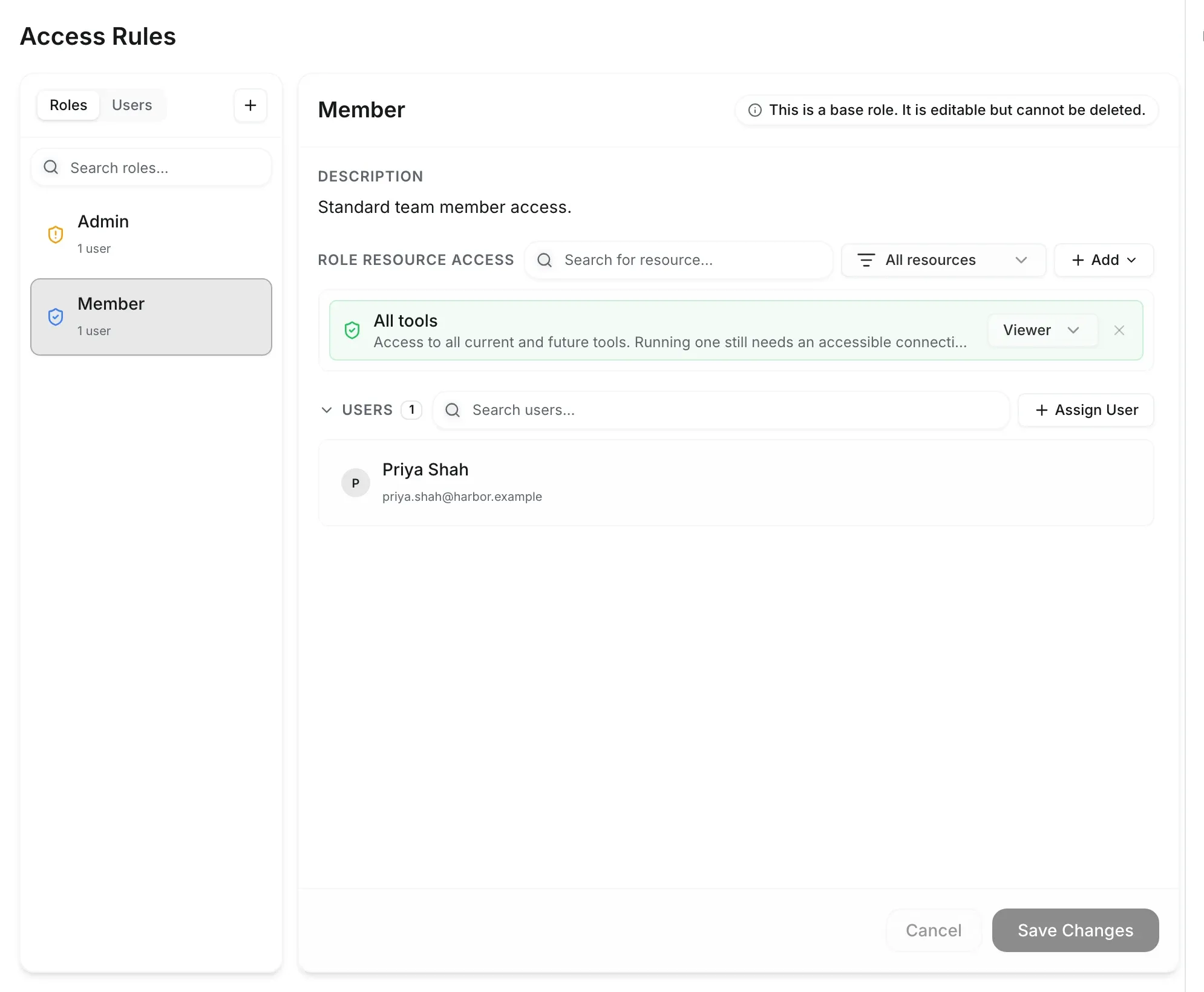
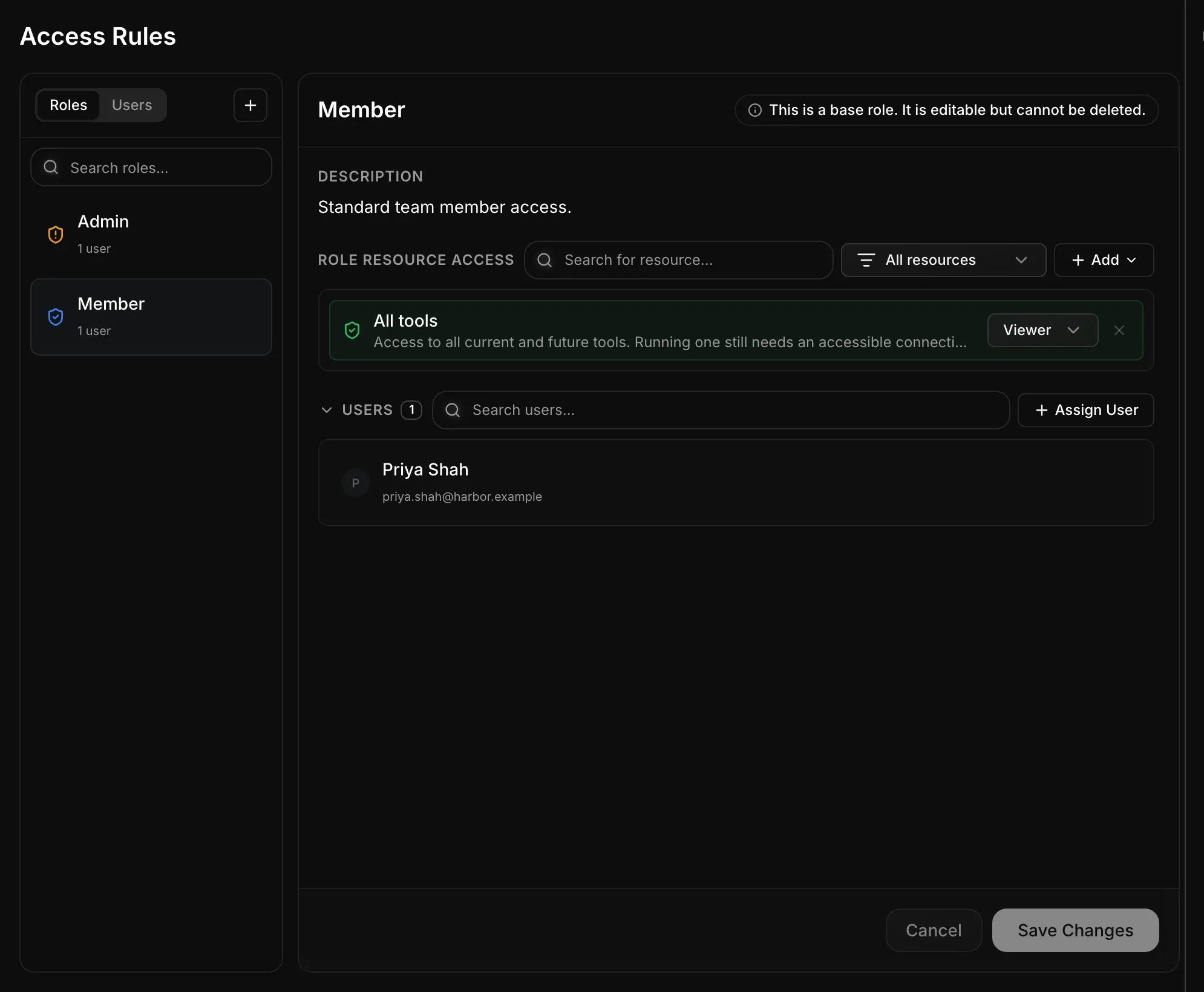
Grant role-level access
Section titled “Grant role-level access”Open Access Rules from the sidebar to configure roles. For each resource type, an admin can grant Viewer or Editor access to either:
- All current and future resources of that type.
- A selected set of tools, connections, or playbooks.
The Admin role is read-only. The Member role’s resource access and custom roles can be configured under Access Rules.
Assign roles
Section titled “Assign roles”Switch a member’s base role between admin and member on Organization. Add users to custom roles in Access Rules → Roles with Assign User.
Share individual resources
Section titled “Share individual resources”Direct sharing adds user-specific access without changing role-level rules. Use the Share action on a tool, connection, or playbook to grant Viewer or Editor access to people or to a role.
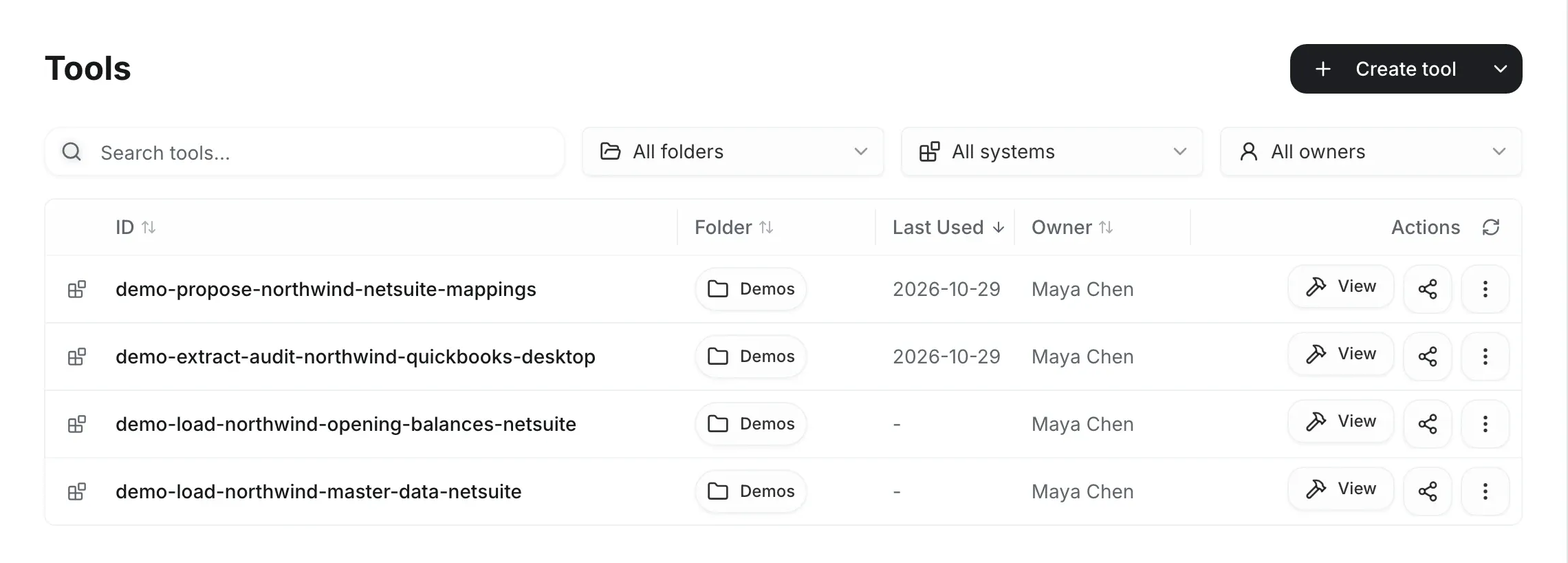
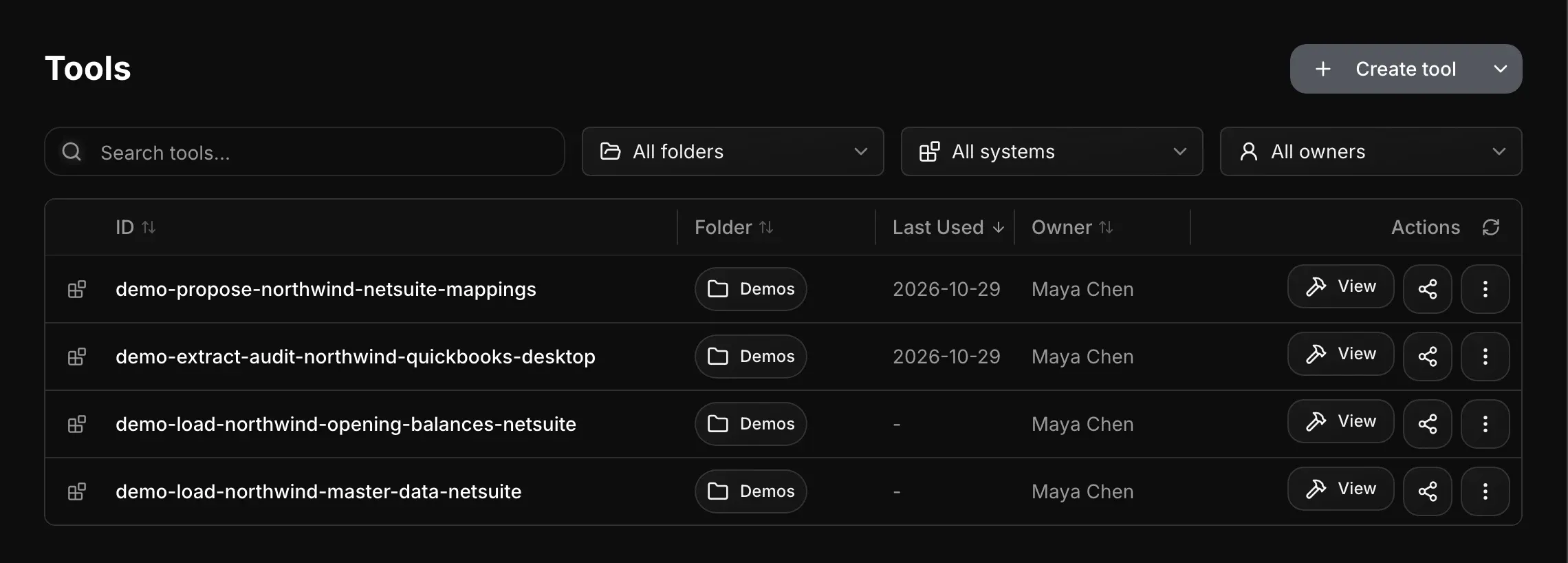
The top of the dialog lists the owner and direct shares. The General access section lists access that comes from the admin role, from access rules and from projects that contain the resource, so you can see why each person can access the resource.
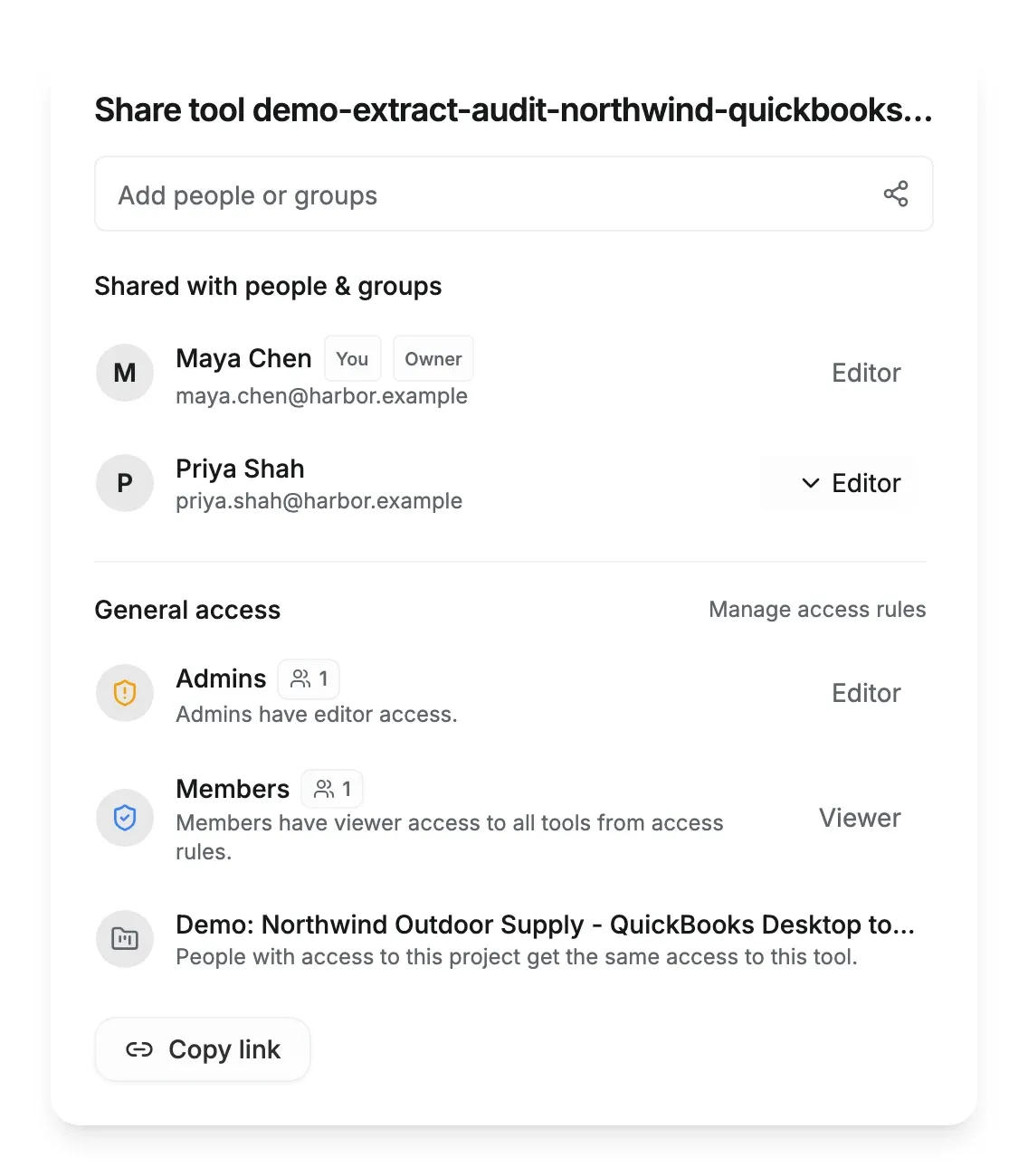
Connection access stays separate from tool access, so secret-bearing resources are only shared deliberately.
Review effective access by user
Section titled “Review effective access by user”Admins can open Access Rules → Users to review the effective access of an individual member. The view combines role-level access, direct shares, and ownership and identifies the source of each permission.
Use this view to:
- Understand why a member can access a resource.
- Add, change, or remove a direct share.
- Confirm whether a role or ownership still grants access after a direct share is removed.
Role-derived access is changed on the role. Ownership is not editable from Access Rules. This keeps the source of each permission explicit.
Member experience
Section titled “Member experience”Members only see the resources they can access. Viewer access provides a read-only configuration experience while still allowing the resource to be used.
Editing and management controls require Editor access and are otherwise hidden or disabled.
Recommended admin workflow
Section titled “Recommended admin workflow”- Configure the Member role as the safe baseline for every organization member.
- Create custom roles for durable team access, such as Sales, Support, Finance, or Data Operations.
- Grant access only to the resources each role needs.
- Set base roles on Organization, and assign users to custom roles in Access Rules.
- Use direct sharing for individual exceptions instead of broadening a role unnecessarily.
- Periodically review Access Rules → Users to confirm direct access is still intentional.